Semantic search isn’t only for organic traffic; it’s for paid search as well. Understanding the difference between broad and exact match search is important, but semantics is all about the search intent behind a query.
Google is focusing a lot more on search intent and keyword variants. Knowing the correlation between intent and semantics can help you narrow down to the perfect audience.
How Does Semantic Search Work?
What is semantics, and how does it apply to search? Semantics focuses on the search intent of a keyword and the thoughts and feelings that the person has as they search that keyword.
It’s a complicated subject, and there isn’t a “black and white” set of steps to follow. A lot of context and concept is behind every search query, and many SEOs overlook this by thinking basic keyword research will solve all their problems.
When it comes to semantics for paid campaigns, we’re talking about incorrect spelling, plurals, variants, synonyms, and other related words and phrases pertaining to the search word.
If we understand what semantics is, we can understand how it impacts paid search.
The goal of every advertiser on Google is to gain visibility for as many applicable keywords as possible. The problem is, no matter how much keyword research you put in on Ubersuggest, Ahrefs, and SEMrush, you’ll never find all the keywords that people in your target audience are searching.
This is where semantics come in.
Google uses semantics in broad and phrase search to help find a wider range of searches and triggers that will match user intent and display your ad.
Exact Match Vs. Broad Match in Semantic Search
To understand semantics, it’s important to know the difference between exact and broad match in Google ads. An exact match requires the searcher to input the exact keyword you’ve chosen to display your ad on.
For example, if you used the exact match “wedding cakes,” the person searching must enter some of the following keywords into Google to display your ad:
wedding cakes
white wedding cakes
chocolate wedding cakes
cheap wedding cakes
and so on
These are exact match keywords because they contain the phrase exactly as-is. As a result, this type of advertising doesn’t use semantics because it doesn’t allow the flexibility necessary to locate related phrases with the same search intent.
Here’s another example: If someone searches for “cakes for weddings” or “weding cakes,” your ad may not display because Google thinks it doesn’t match your intention.
Even though the search intent is the same, you’re not using semantics in your advertising and may experience a higher CPC because you’re targeting a much narrower audience than necessary.
Using Semantics for Paid Vs. Organic Search
When it comes to organic search, many SEOs and site owners like to find every slight permutation of a keyword and include it somewhere in their content. At one time, this was the best strategy.
However, with the RankBrain update, Google started to implement machine learning and AI to understand the search intent and context of the search rather than rewarding the people stacking as many exact match keywords into their content as possible.
The goal is to make the process of finding information on Google as natural and conversational as possible.
For example, if you asked a friend, “Who is the richest person in the world?” they might respond, Jeff Bezos.
If you then asked, “Who has the most money in the world?” the answer would be the same, correct?
This factor should apply to Google search as well. Just because two people ask the same question differently doesn’t mean they should receive two different sets of search results. The question has the same intent, and the query demands the same answer.
If we apply this to organic search, it would tell us that we don’t need to worry so much about getting every single variation of the keyword because Google will identify the similarities and help us rank for all the keywords with the same intent.
On a different note, Google’s machine learning is using your habits as a searcher too. After searching for the richest person in the world on Google, I searched “most money” to see what that would bring.
The number-one result on Google was still relevant to my original search. Since I didn’t click through to anything, Google is still scrambling to find an answer to my query.
Why Should You Use Semantics for Paid Search?
Google released data that tells us how important semantics are for paid search. Approximately 15 percent of daily searches are new searches that they’ve never seen before. If those 15 percent of searches have never entered Google’s database before, how could anyone ever pick them up using keyword research or competitive analysis?
You can’t.
When it comes to long-tail keywords, the goal is to grab as many of those as possible. However, thousands and thousands of search phrases never hit the keyword research phase because they yield no traffic, and most people would never include a keyword with no traffic in their content.
Unless Google does it for you.
This factor has become ever prevalent with the rise of voice search as well. Voice commands are much more common today than they were when released in 2011. Twenty-seven percent of the population uses voice search on their phones. It’s also believed that 62 percent of individuals would make a purchase using voice technology on their smart home device.
We all know that people do not speak the way they search on Google. Semantics play a major role in Google’s ability to take a voice search and translate it into accurate results.
3 Steps to Use Semantic Search for Paid Ads
What can you do to capitalize on semantics? By now, we see the importance of semantics for paid search, but what should you do to ensure you’re reaching as much of your audience as possible?
Worry Less About Keywords for Semantics
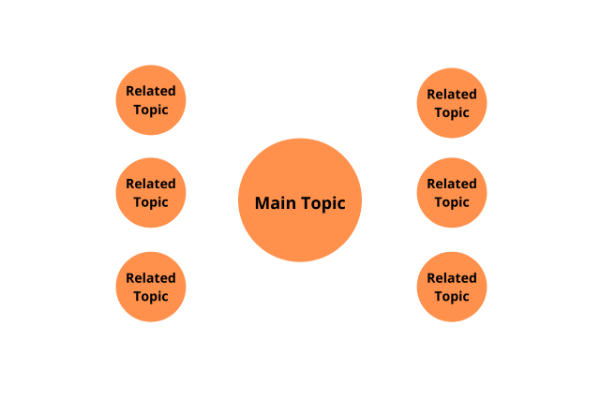
We should all worry less about creating content around keywords and instead create content around topics.
The goal is to cover a topic as in-depth as possible, and the keywords will come naturally.
A lot of SEOs talk about “silos” and “clusters.” These two strategies help you build out content in a way that increases site relevancy and boosts authority. By doing this, you’re showing Google that you’re an expert on the subject, and it should give you precedence over your competition.
Focus More on Intent
I’m always preaching the importance of search intent, but this has become Google’s bread and butter. It makes it more difficult for SEOs to game the system by stacking a bunch of keywords in their content.
When choosing keywords for a paid search, you want to focus on the thought behind the keyword and target the intent. Think about the queries that lead people to your website.
What are they trying to do when they come to your site?
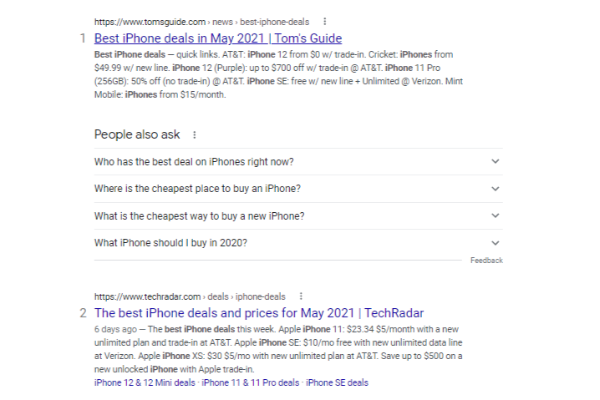
Are people there to learn something? Purchase something? Inquire about something? Once you’ve determined that, you’ll want to find keywords matching that intent. In this image, the keyword “best deals on iPhones” has a different search intent than “best iPhones,” pictured below. While they both contain a similar phrase, the person searching is trying to accomplish different things.
Someone searching for deals is already in buy mode; they want to buy an iPhone and are looking for good deals.
Someone searching for the best iPhones may not have settled on the phone yet. They want to research brands, quality, read reviews, and learn more before making a purchase.
These two individuals are at different steps in the buying process.
Understanding this can help get more people to your site and may even decrease your bounce rate because they’ll get more of what they bargained for when they land.
Don’t Ignore User Experience When It Comes to Semantics
With the release of Core Web Vitals, we know that Google is paying attention to the on-site experience. Factors such as loading speed, load delay, and page layout are important. Focus is shifting away from advertisers and affiliates and turning to the users. Google doesn’t care about how well you understand SEO and how many hours you spent on keyword research.
All they care about is that people get what they want on your site. If you’re giving people what they want, Google will reward you. If you’re not, they’ll reward your competition.
For many years, site owners pumped out sub-par keyword-loaded content built to rank but ignored the people searching for those keywords. That won’t cut it anymore. Work on improving your page speed, optimizing your site for mobile, and pay attention to bounce rate and session duration. These are all indicators of whether or not you’re choosing the right keywords and targeting the right audience.
If you find that certain paid ad keywords have a higher bounce rate, it could mean you don’t have the right search intent. Semantic advertising isn’t all about verbiage; it’s also about relevancy. You could have the best offer in the world, but it won’t mean anything if your site doesn’t function properly.
Measuring the Success of Your Paid Search Campaign Using Semantics
How can you measure the success of semantic search in paid ads? The most important metric you’ll want to track is the success of individual broad-match keywords. By finding out which words Google’s AI is displaying your ad for, you can determine whether you should continue advertising for that broad-match keyword.
For example, if you’re advertising a site that sells iPhone cases, and you find that your audience’s search intent doesn’t align with the phrases your ad is displaying for, you might want to readjust or target something different altogether.
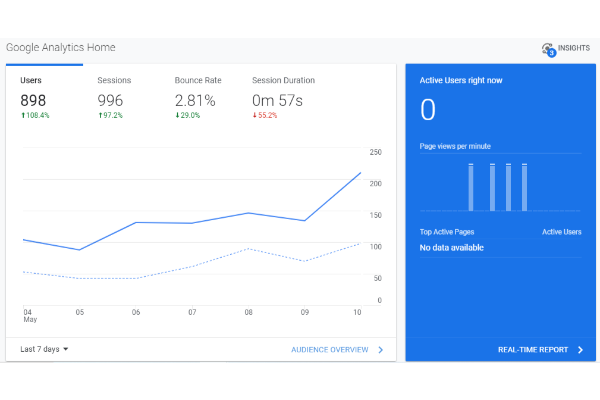
Two other metrics that can tell you a lot about the success of your campaign are the bounce rate and average time on page. If you’re targeting the right audience and bringing the right people onto your page, they’ll likely stay awhile.
If you have a 90 percent bounce rate and an average time on a page of less than a minute, chances are people are landing on your site, not liking what they see, and going somewhere else.
This could be a sign of a deeper on-site issue, but for this example, you might want to make sure you’re sending the right people through.
You can use tools like Google Analytics or the Google Ad dashboard to explore this data.
Conclusion
Much of this article will be great news for many of you. It means you don’t have to lose your mind on hours of keyword research anymore. By using broad matches and focusing on intent, you could pick up all the relevant keywords without having to identify them manually.
If you need a little more help, we can walk you through the steps necessary to get your campaign up and running.
The paid ad space is constantly changing and adapting to the digital environment, and we all have to jump aboard and roll with the changes. If we don’t, we risk letting our competition get ahead while paying more per click and receiving lower-quality click-throughs.
Be sure to keep semantics in mind as you set up your paid campaigns and really think about what the individual is trying to accomplish when they type a phrase into Google.
How have you used semantics to narrow down on your target audience?
To create a paid ad campaign effectively, you need a solid strategy for organizing your data and tracking your ad performance.
Excel spreadsheets can do just that.
While a spreadsheet might not seem like the most intuitive tool for managing your marketing efforts, there are many Excel tricks you can use to quickly streamline your data, track metrics, and improve conversions.
There’s no need to be an Excel expert to master these tricks. All you need is access to a version of Excel and a desire to learn.
Maybe you’re wondering if you should bother learning Excel if you already use other tools like CRM software or Google Analytics to manage your marketing campaigns.
Honestly, you probably should.
The humble Excel spreadsheet offers you a simple yet highly effective way to organize all your data from various project management tools in one place. Whether you want to use your spreadsheet for keyword research or you’re turning data into a bar chart, there’s an Excel trick to make your job easier.
Plus, you never know: You could end up at a company that still strictly uses Excel for these things!
With all this in mind, let’s look at using Excel to boost your paid ad or pay-per-click (PPC) campaigns.
Google Sheets is a fantastic (and free) alternative to Excel. It’s not designed to handle the enormous data sets you might want to hold in Excel, such as keyword research, but it’s excellent for managing deadlines, analyzing customer relationship data, and filtering statistics to gain some key insights into your ad performance.
I’ll be using Excel to work through examples here, but you can, of course, use Google Sheets for many of these tasks if that’s what’s available to you. You can also check out Calc from OpenOffice since the functions on offer are very similar.
5 Excel Tricks to Use in Paid Ad Campaigns
When creating paid ad campaigns, you need to think about which keywords to use and bid on, how to boost your click-through rate, and how to increase your conversions once people land on your page. What’s more, you need the means to compare different ads within the same family to check for underperforming content.
Excel, thankfully, can help you tackle all of these issues and more, so here are my top five Excel tricks you can use to design, track, and analyze your paid ad campaigns.
1. Filter and Sort Key Data
As I’ve touched on, the goal of creating a PPC campaign is to get as many clicks and conversions as possible. How do you maximize your chances of success? You first need to choose the right keywords.
If you use keyword research tools like Ubersuggest, you probably see hundreds, if not thousands, of keyword suggestions. Excel can help you sort through this data to identify the keywords you should be using.
Depending on your campaign goals, you can filter the data based on factors including:
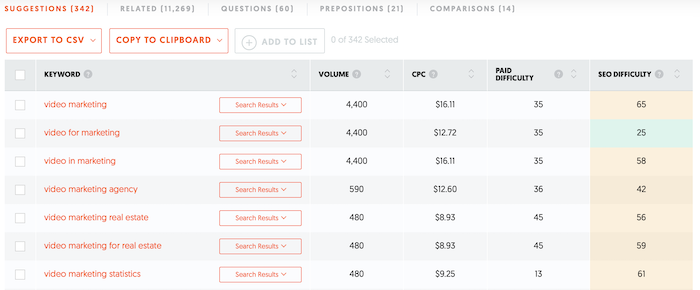
Say you’re creating a PPC campaign around video marketing. You input the keyword “video marketing” into Ubersuggest. When you click “View all keyword ideas,” you’ll see 342 suggested keywords and over 11,000 related keywords.
How do you translate this into Excel? First, download a copy of the keywords by clicking the “Export to CSV” button:
Now, filter the results to only see the keywords most relevant to you and your campaign. To do so, load up the spreadsheet, head to the “Data” tab, and click the “Filter” option:
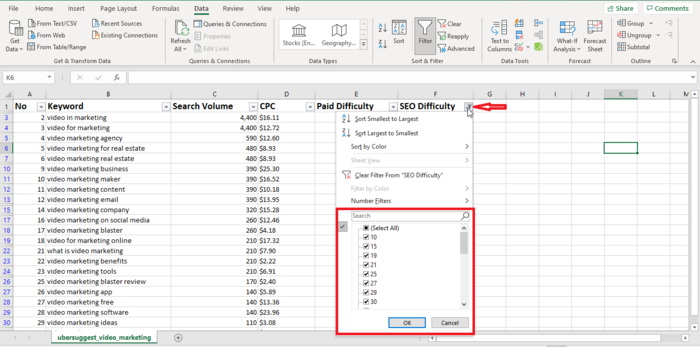
For our example, let’s filter the keywords based on SEO difficulty. Go to the column header and click the arrow. From the drop-down menu, uncheck the boxes for the irrelevant keywords. They’ll disappear from your search results so you can focus on the important keywords:
Once you’ve finished analyzing the data based on one filter, you can quickly switch to another using this Excel trick.
You can also filter out “negative” keywords from your search results. Say you don’t want your PPC ad to appear in search results for “real estate” because you’re not targeting this audience. Click on “Text filters” from the drop-down menu, then “Does not contain.” Input the words “real estate” into the box.
2. Use a PivotTable to Track and Compare Audience Demographics
The next Excel trick I’ll show you is how to create a PivotTable.
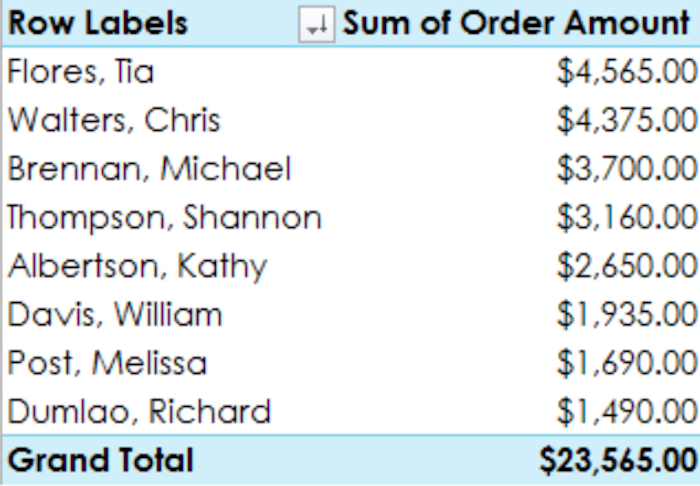
What is a PivotTable? Think of it as a kind of interactive report. It allows you to analyze massive data sets and extract critical data to inform your decision-making process. Here’s what a PivotTable might look like:
From a marketing perspective, PivotTables are invaluable. They can show you, at a glance, who is clicking on your ad and where they’re based. What’s more, if you’re running multiple ads, you can identify if certain demographics are clicking on one ad more than the others, and so on.
In other words, if you’re a marketer trying to track your campaign’s success, a PivotTable could be your new best friend.
To use a PivotTable effectively, first identify your data source. You might use data from Google Analytics or another analytics tool.
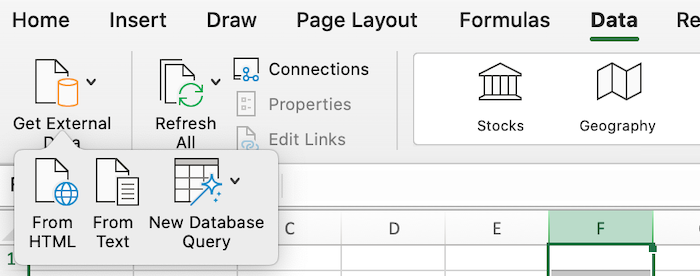
Next, import this data into an Excel spreadsheet. The easiest way to do this is by importing a CSV into Excel. To import a CSV into a new Excel workbook, simply click the “Data” tab, then click “Get External Data” and select “Text” from the menu options:
Once you’ve checked the data moved over correctly, create your PivotTable. Include columns for demographic data such as location, age, and gender, and columns tracking metrics such as conversions and impressions.
Highlight the cells containing the data you’re interested in, then go to the “Insert” tab and click “PivotTable.” Confirm the fields you want to include to generate your table.
Next, decide what data you want to include in your PivotTable. For instance, if you’re tracking audience demographics, have columns for data such as location, age, and gender.
You also need columns for metrics like clicks, impressions, and conversions because you’re trying to track performance.
Finally, analyze the results and make whatever changes you need to increase your conversions and improve your PPC campaign success.
3. Use VLOOKUP to Track Metrics
Do you want to combine two sets of data from different spreadsheets or tracking tools into a single sheet? Then you need to check out the VLOOKUP function.
Essentially, VLOOKUP allows you to quickly combine a vertical column of data from one spreadsheet into another. Be aware: Both data sources must have at least one column in common, or this method won’t work.
Say you’re looking for new keywords for your PPC campaign. You don’t want to duplicate keywords, so you’re looking to see if any of the new keywords you found are already on your existing keyword spreadsheet or PivotTable.
You can use the VLOOKUP Excel trick to identify any genuinely new keywords and import them into your spreadsheet.
First, identify the new column in your existing spreadsheet that you want to fill with fresh keywords. Then, select “VLOOKUP” from the “Formulas” tab.
Next, complete the VLOOKUP formula. You’ll need four things:
Lookup Value: This is the value that both data sets have in common, such as a keyword.
Table Array: Table array is the range of columns you’re pulling from.
Column Number: The column number is what column number you’re pulling data from. For example, if you’re pulling data from the second column in your table array, the column number is “2.”
Range: Finally, it’s best if you keep the range “FALSE” to only pull exact matches.
Once you complete the formula, the data sets merge.
VLOOKUP is pretty technical, so check out the Office support page for more help creating your formulas.
When you’re creating PPC ads, it’s worth adding original graphics or data visualization tools, like bar charts or graphs, to potentially increase your click-through rates and conversions. Luckily, Excel can help you do this.
If you’ve already got a PivotTable, it only takes a few clicks to turn it into a chart. Simply click the “Analyze” tab, select “PivotChart,” and decide which chart type you want to use. That’s it!
Don’t have a PivotTable? Fear not.
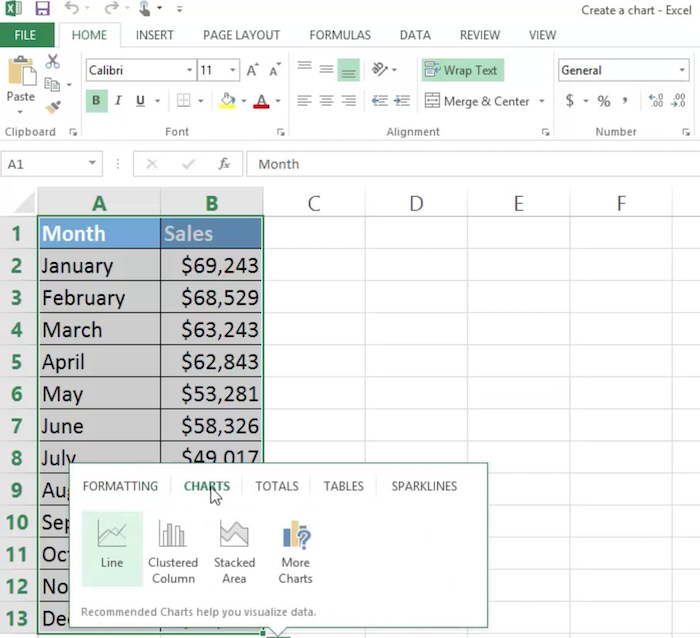
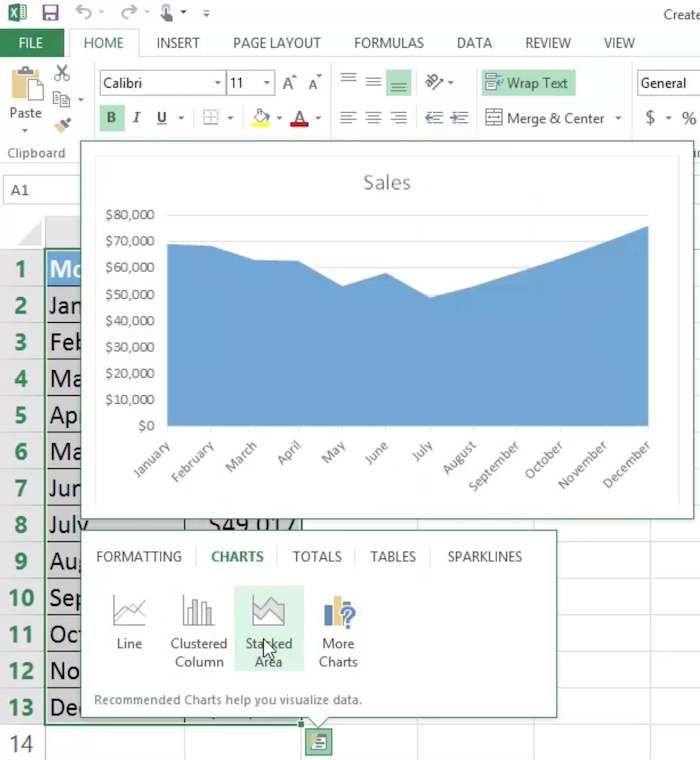
First, select the data you want to include in your chart, click “Insert,” then hit the “Recommended Charts” button:
Pick the design you like most and generate the chart:
The Microsoft support page has more hints and tips for customizing your chart.
5. Save Time With Excel Macros
When you create paid ads, you often perform the same steps each time. Excel lets you automate repetitive tasks to save you time.
How do you automate these tasks? Through this neat little Excel feature called a macro.
Macros are essentially automated or recorded sequences. You “record” a set of actions you want Excel to automate, like keystrokes. When you need this action performed again, you simply run the macro, and Excel handles the rest for you.
Well, there’s no limit to what you can use them for, but here are some suggestions for paid ad campaign steps you might automate.
completing keyword research
generating new campaigns
converting data into PivotTables
building new templates
Setting up a macro should be a short process, though you can always check out the Microsoft help page if you need more guidance.
First, ensure you can see the “Developer” tab in Excel. From here, hit “Visual Basic” and then click the “Record” button. If you can’t see the Developer tab, just click the “View” tab and hit “Record Macro” there instead:
Choose a name for your macro and then start recording. Once you click “OK,” Excel records every action you take on the spreadsheet until you hit “Stop Recording.” Now you’ve got a macro set up to use whenever you need it.
Before you run a real and complicated macro, try setting up your own simple test macro to get a feel for how they work.
Conclusion
If you’re a marketer, these Excel tricks can help you create, track, and manage your paid ad campaigns more effectively than before. There’s no need to be an Excel expert, either. All you need to know are a few simple commands, and you could be up and running pretty quickly.
From keyword research to customer relationship management, Excel could be the tool you’re looking for. Once you’ve tried these Excel tricks a few times, you’ll probably wonder how you managed to run your PPC campaigns without them!
If you need any more help with Excel, be sure to check out Microsoft’s Excel Community support page.
Have you used any of these Excel tricks for your paid ad campaigns?
If you are thinking of starting a business, you are likely thinking about funding. Can you afford to start a business? If you have a good credit score you probably aren’t worried. If your credit score isn’t great, you may be wondering “What’s the best way to improve credit score in time to start a business?”
Best Way to Improve Credit Score, Both Personal and Business
The thing is, that’s the wrong question. You need to be asking yourself “What’s the best way to improve credit score for myself and my business?” Whether your business is brand new or fully established, it needs a strong business credit score to thrive.
Many business owners do not even know that their business can have a credit score. They assume everything rests on their personal credit. Others know their business can have credit all it’s own, but do not truly understand how a business gets its own credit score. That knowledge is key to learning the best way to raise your credit score and how to build a strong business credit score.
Personal Credit Score vs. Business Credit Score: What You Need to Know
Your business credit profile is the overall picture of the creditworthiness of your business. Lenders look at it to determine whether or not they want to lend to you.
To better understand the best way to raise credit score for your business and how it is different from your personal credit score, you need to understand some of the differences between business credit profiles and personal credit profiles. There are many, but these specifically seem to cause a lot of misunderstanding and confusion among borrowers when they get a funding denial.
How You Establish Each Type of Credit Profile
The biggest and probably most misunderstood difference is in how you establish the two profiles with their accompanying scores. Pretty much everyone knows that with your first debt, usually a credit card, you begin building your personal credit score. If you handle your credit responsibly, you will have a good score. If you do not, your score will be bad.
You do not have to do anything to open a credit profile for yourself. As you pay your debt, the creditor reports your payments, or lack thereof, and your score builds from there. Such is not the case with your business credit profile.
You have to intentionally set up your business in a way to establish your business credit profile. This means fully separating it from yourself as the owner by having separate contact information, an EIN, and D-U-N-S number, incorporating, and opening a separate bank account. In fact, this is the first best way to improve your business credit score. Before these things are done your business will have no credit profile or credit score of its own.
Late Payments
Both business and personal credit reports are affected greatly by late payments. Yet, business credit scores are affected faster and more profoundly. Late payments are not reported to personal credit reports typically until they are 30 days past due. Late payments on business credit accounts are reported if only one day late.
Inquiries
Hard credit checks on your personal credit will lower your credit score. However, business credit reports are different. A credit check on your business credit profile does not affect your business credit score.
Data Reported
In addition to late payments being reported much more quickly, accounts on your business credit profile are listed by industry. In contrast, personal credit lists the name of the company that issues the credit.
Also, personal credit reports show the exact amounts of accounts, while business credit reports show rounded amounts. How long data stays on a personal credit report varies, but typically it’s the life of the file. Information stays on business credit reports an average of 3 years.
Also, with personal credit accounts, almost every account reports to the credit reporting agencies. In contrast, only about 7% of business credit accounts report to business credit reporting agencies. This is why you have to intentionally seek accounts that will report to business credit reporting agencies (CRAs), and that is only one of many reasons working with a business credit expert is the way to go.
One last thing to note about business credit versus personal credit is this. While your business credit profile is totally separate from your personal credit profile and does not affect in any way, the reverse is not true. Your personal credit information can affect your business credit profile, and in some cases, even your business credit score.
Best Way to Improve Credit Score: Personal
Most people know many ways to do this, but what is the best way to improve credit score on your personal credit profile? Frankly, it’s to pay your bills consistently on-time. That said, sometimes that isn’t the problem. Furthermore, sometimes you need to make other improvements while you work on paying on time.
Personal Credit Score Monitoring
This is easy and free. You can get a free copy of your credit report annually. The first thing you need to do is look over it for mistakes. If you find any, contact the CRA in writing. Send with your letter copies any documents you have to support your case. This may be receipts, bank statements, anything that proves that what you are saying is a mistake is indeed a mistake.
After that, look closely for what else could be causing issues. Is too much available credit being used? Are there too many late payments? The best way to fix this is take a long, hard look at your budget. Cut wherever you can to start making more than the minimum payments.
A good strategy is to put all available extra cash on the highest interest debt. Then, when that is paid off, put that entire amount, extra plus the minimum, on the next highest interest debt, and so on. This is called the snowball method, and it can help you raise your credit score significantly if you stick with it.
After that, there are many free apps to help you track your personal credit score throughout the year. This is the best way to get credit score information on a regular basis. Typically, you can get a snapshot of what your credit looks like once a month with these, and if you pay a fee you can see it in real time. This can let you see if your efforts are working, and show you if something is amiss.
Best Way to Improve Credit Score: Business
Understanding how your business credit score is different from your personal credit score helps a lot. For example, now that you know that a business credit account can report a late payment even one day late, you can plan accordingly.
Furthermore, knowing that not all business accounts report lets you know that you need to intentionally look for those that will report to raise your score.
There are a few ways to do this. First, talk to any vendors you already have a relationship with. Ask them to report your payments to the business CRAs. They don’t have to, but they may. It can only help you.
Next, talk to utility, phone, and internet providers. You pay them monthly already. Ask them to report those payments. Again, they do not have to. Still, if they agree, it can only help you.
After that, actively seek out accounts that report. The problem is, most vendors do not make it publicly known whether or not they report. This is just one of the many ways a business credit expert can be helpful. They have inside information and relationships with vendors to help you get this information and more.
This is a whole other ballgame. First, business credit score monitoring is never free. You may be able to get a peek as a one time free trial promotion, but for the most part you have to pay to see what is on your business credit profile. One exception is, if you get a loan denial because of what a lender sees on your business credit report. They have to disclose that, and you can get a free copy of your business credit report as a result.
Follow the same steps as you would with your personal credit profile. If you see a mistake, contest it. Each of the bureaus has directions on how to do so on their website.
There is More Than One Best Way to Improve Credit Score, and More Than One Credit Score to Improve
All the best ways to get your credit score up involve one thing, knowledge. First, you have to know how to see what is one your credit report. Then, you have to know what to look for so you can know what the problems are. After that, you can fix them. One thing remains true however. The hands down best way to improve credit score, whether personal or business, is to pay your debt on time. If you need help on the business side, Credit Suite has you covered. Talk with one of our qualified business credit expertstoday!
McLaren rolled out its striking blue and orange Gulf livery on Thursday ahead of the Monaco Grand Prix, a one-off look designed especially for F1’s showpiece event this weekend.
Facebook offers businesses new ways to connect with their audience, promote and sell products, and improve online visibility for their brand. The addition of shopping features such as Facebook Marketplace can also be leveraged by businesses to improve online conversions.
With over 140 million business accounts on Facebook, you may think competition is high. However, the right tactics and execution can help you create a Facebook Business Page that drives new revenue for your business.
Let’s review how to create Facebook business pages that increase your engagement, clicks, and revenue.
What Is a Facebook Business Page?
A Facebook Business Page is a stand-alone page that allows you to promote your business on one of the world’s biggest social platforms.
Facebook Business Pages are different from personal pages because they represent a business or brand, rather than an individual. This means the content on your Facebook Business Page needs to be brand-focused and professional.
A Facebook Business Page will let you share content, respond to customers, have conversations with your followers, and promote products within your feed.
You can also invite other people to manage your Facebook Business Page including any partners or outside agencies you may be working with.
Facebook Business Pages can also run paid Facebook ads to further promote your brand and products.
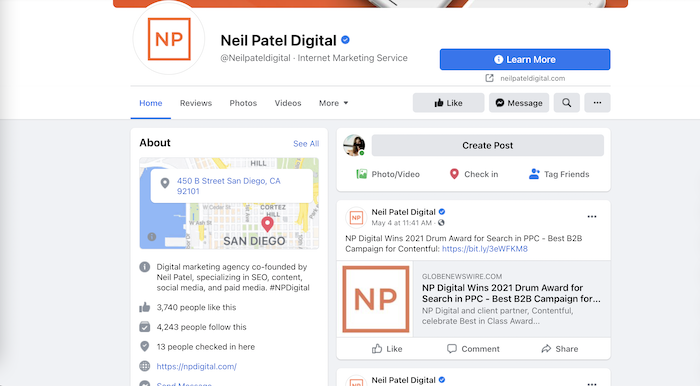
As you can see, it includes features a personal page doesn’t have, such as a “learn more” button, map, and a Like button.
Why Should You Create a Facebook Business Page?
When you create a Facebook Business Page you are helping people find your business and learn more about what you offer.
Your business page also helps you build an online community and better service your customers. Once you’re set up, your followers can interact with you and ask questions about your products and services in real-time, which is a great way to improve your brand integrity.
To create a great Facebook Business Page, you need to analyze everything, from your profile picture and cover photos to Facebook ads, target audience, and media planning (types of posts and when it’s time to post).
Here is a six-step guide to creating your Facebook Business Page.
1. Login or Sign-up to Facebook
First, you need to log in or join Facebook. You can create your Facebook page from your personal page if you prefer, or you can create an entirely new account for your Facebook business page.
Select the type of page you want to create, either a business/brand or community/public figure, and then click Get Started.
Here, you’ll be asked to supply some basic information.
The basic information you can add includes:
Page name: Which should be your business or brand name.
Business category: One or two words to describe your business. Facebook will give you options once you start typing. If your business falls under more than one category, try to pick the one your customers will associate with your business.
Description: A brief description of what you do, services you offer, and the purpose of your Facebook Business Page.
From there, click Continue. Moving forward indicates you have accepted Facebook’s Pages, Groups and Events Policies so familiarize yourself with these if you haven’t already.
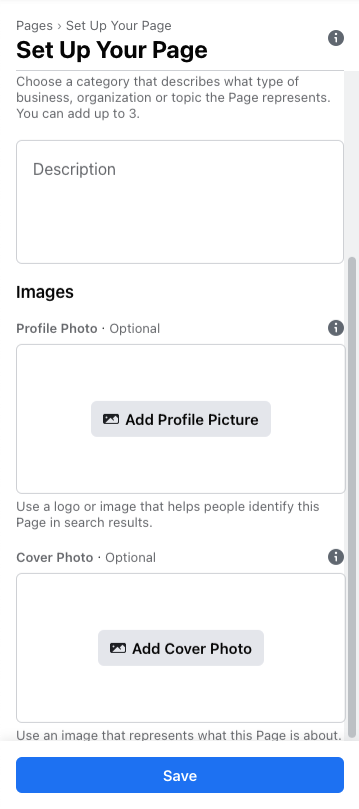
2. Upload Cover Photo and Profile Picture
Your cover photo and profile picture are the main visual assets of your Facebook Business Page.
Many businesses use their logo for their profile picture, but you can choose any photo that represents your business and branding.
When choosing a profile picture, be sure to adhere to Facebook’s sizing guidelines to ensure your photo does not get cropped.
You’ll also want to add a cover photo when you create your Facebook Business Page. Your cover photo should be visually exciting and representative of your business and branding. Refer to the sizing guidelines for cover photo sizing.
Once you complete this step, your page will be automatically published.
3. Enter Your Business Information
Now that you have the skeleton of your page setup, it’s time to start adding content.
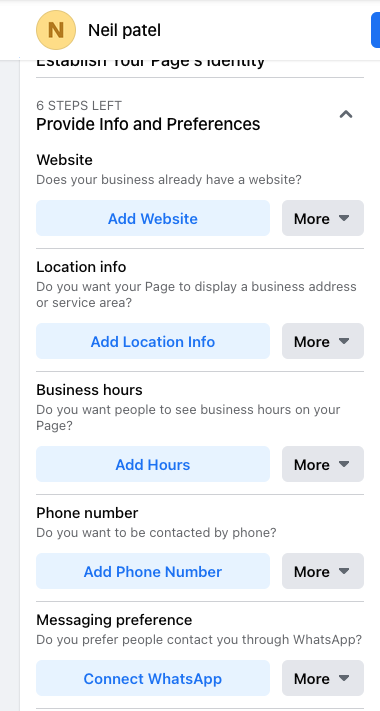
Your Facebook Business Page contains basic information about your business that you’ll need to fill in. This includes:
Contact: Share how your followers can contact your business if they have questions or concerns. This can include your phone number or email.
Location: Where you are located. If you don’t have a physical storefront, you can simply input your city and state.
Hours of operation: The hours you are open for business or available for customer communications.
Username: This is a unique username used in your Facebook interactions. This should be @ followed by your business name. Don’t get too creative here or it can make it difficult for your customers to find your business.
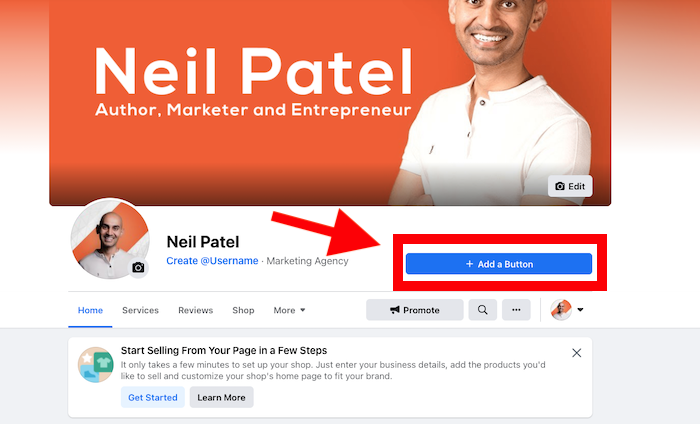
A CTA button is featured at the top right-hand of every Facebook Business Page, just below the cover photo.
It’s important to choose a relevant CTA to ensure you are directing your audience to the most pertinent actions.
For example, if you are a physiotherapy clinic looking to book more clients, your CTA button may say Book Now.
If you are an e-commerce business looking to sell products, then you may want to choose a CTA button that says Shop Now.
To edit your CTA button, click “+ Add a Button.”
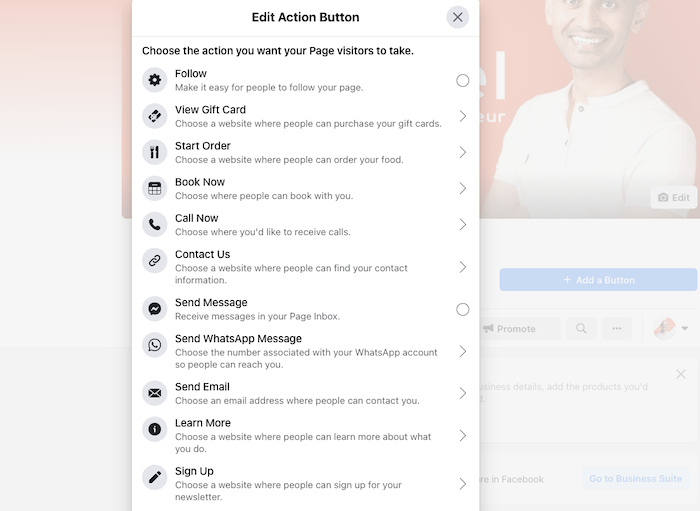
From there, Facebook will give you a list of actions that your CTA could encourage. These include Start an Order, Book Now, Contact Us, and more. Choose your action and follow the steps given to complete your CTA button.
If you don’t choose a custom CTA here, Facebook will automatically create a Contact Usbutton for your page.
5. Publish Your First Post
Before you invite people to your Facebook Business Page, you should make a post so there is content for them to view.
Your first post can be a welcome post that explains who you are and what you do, or it can be something aimed at user-generated content (UGC) to get visitors engaged with your Facebook Business Page right away.
For example, a contest or giveaway can be a great way to drive immediate traffic. You can also promote sales or discounts to encourage your audience to browse and purchase your products.
Your Facebook Business Page is now ready to get traffic, so you can start inviting your audience to follow your page.
If you used your personal Facebook account to set up your page, you will be prompted to invite your Facebook friends. This group is usually a good base for your Facebook Business Page, so invite as many of your personal friends as you feel appropriate.
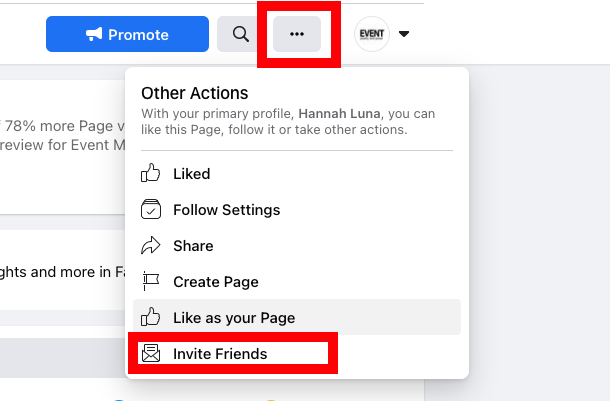
You can invite followers by clicking on the three dots “…” below your CTA button and clicking Invite Friends.
You can also use other channels to drive traffic to your Facebook Business page, such as your website, social media accounts, email marketing, and paid advertising campaigns.
How to Track the Success of Your FB Business Page
Now that you’ve created your Facebook Business Page, you’ll want to know how it performs and continuously optimize it to get better results.
There are many ways to track the success of your Facebook Business Page. Here are a few metrics you can track with Facebook Insights.
Engagement: Facebook uses an algorithm to show posts in your followers’ News Feeds. Posts that have higher engagement are seen as more popular and relevant, so they are more likely to show up. This means you want more likes, comments, and engagements on your posts to increase your reach. Pay attention to posts that perform well and find ways to mimic that engagement to ensure your Facebook Business Page is successful.
Reach: Reach refers to the number of people who see your content on Facebook. To see this, click on the Reachtab on your Facebook Insights page. Track and analyze your Reach regularly to learn what your audience likes and doesn’t like to better inform your post decisions.
Impressions: Impressions measure the number of times your post was seen, even if it was seen multiple times by a single user. You can find this in Facebook Insights by switching Reach to Impressions.Impressions can show you how viral your posts are and how likely they are to continuously impact your customers. Remember, it often takes a customer hearing about your brand seven times before they’ll convert to a customer.
Page likes and follows: Page Likes refer to the number of people that follow your Facebook Business Page. You can see this number on your Business Page homepage or through Facebook Insights under theLikes tab. While Page Likes are often considered a vanity metric, they are important to track the growth of your audience. If you find your page is plateauing and your Likes are not growing, it may be time to reevaluate your digital marketing strategy.
How to Create a Facebook Business Page
Summary of How to Create a Facebook Business Page
Log in or sign-up to Facebook
You can use a personal account or set up a new one for your business.
Upload a cover photo and profile picture
These should represent your branding and adhere to Facebook’s sizing guidelines.
Enter your business information
This includes opening hours, contact information, location, your About section, and more.
Add a CTA button to your page
Use a CTA to drive the most conversions for your business.
Publish your first post
This should be engaging and immediately draw users into your business.
Invite your audience
Start with your personal friends’ list and then use your other digital channels to grow your audience.
Conclusion
Creating a Facebook Business Page is a great way to improve your revenue and grow your business online.
If something is written about your brand online, you want to know about it, right?
That’s even more true if it’s an authoritative source speaking about your brand and giving information to the public about what you sell, where you’re located, your hours, your website, and more.
When Google shares information about your brand in what is called Google Knowledge Panels, you don’t want to just know about it—you want to claim it.
Why do you want to claim knowledge panels? You get to control the narrative. When you tell Google you’re the owner of that brand, you can make sure the information is accurate and up to date.
To claim knowledge panels for your brand is relatively simple and something you want to get on top of to keep customers coming through your doors or to your website with consistency, arming them with the right information.
What Are Google Knowledge Panels?
You don’t have to use too much imagination. Remember the last time you googled anything? The information you were looking for just popped up, towards the top of the screen, with relevant data all in one place.
Enter Google Knowledge Panels. You don’t have to know what they’re called to know what they are. They are the boxes of information you see near the top of a Google search for anything from a person to a brand.
Knowledge panels can include:
a brand or entity name
descriptions
details about the person or brand
history
contact information
featured images
According to Google, it uses different factors to decide what goes in that panel. As you start to look around, you’ll start to notice some information seems gathered from other sources, such as Wikipedia or other online websites.
In addition, Google uses its data involving keyword searches and questions people tend to ask regarding that particular entity or item, and it pulls those questions and answers in.
It’s all based on Google’s Knowledge Graph. Google uses all that data to build the knowledge panels you see when you search for something. These aren’t necessarily generated by the person who has claimed their Google knowledge panel.
Now, let’s look at a couple of examples.
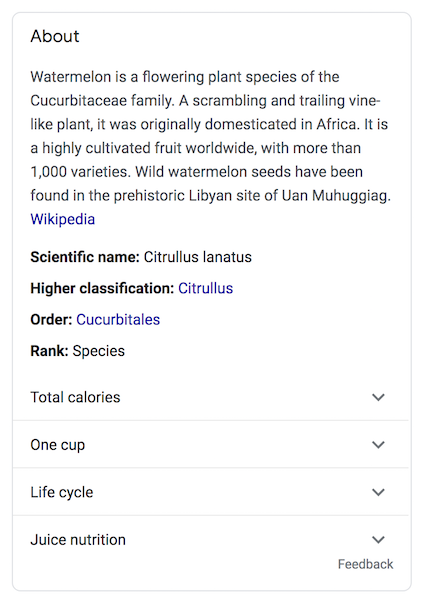
This one is about watermelons. It’s not specifically owned by anyone in particular and therefore not claimable.
Here is an example of a knowledge panel associated with a person. She could go in and claim it using the button on the bottom left.
We’ll discuss more about how this works.
Why Should You Claim Knowledge Panels in Google?
Is it worth taking the time to claim knowledge panels in Google? If you’re the owner of a brand with a knowledge panel, you can verify your relationship to that entity and at least influence some of the information provided in the panel.
There are several reasons why you should consider taking the time to claim knowledge panels:
increase control over what’s being highlighted about your brand
have a more engaged relationship with what Google is showing about your brand
While you don’t have direct access to the panel to make changes, by claiming your knowledge panel, you have Google’s ear, so to speak. You can send in a suggestion or request an update with your Google account associated with that knowledge panel so when Google receives your request, it knows it’s coming from an authoritative source.
Steps to Claim Knowledge Panels in Google
ow you’re ready to claim knowledge panels that relate to you, your brand, or entities that you represent in Google. Here are some steps to get you started:
1. Sign in to Your Google Account
You need to have a Google account to be able to claim knowledge panels. If you have a Gmail address or other Google product where you’ve set up an account, then you are good to go. If not, go ahead and set one up. To continue, you’ll need to be logged in.
Now log in to your preferred Google account. If you use a specific account for your brand or your related business needs, sign in to that one.
2. Search for the Knowledge Panel Topic
Once you’re logged in, use Google to search for yourself, your brand, your entity, or your organization. It may seem self-explanatory, but you need to actually type in the entity for which knowledge panel you’re looking for.
The goal here is to pull up the knowledge panel like any other searcher on the internet would see it. There is no back-end way to see the knowledge panel, like the development or content end of your website.
The nice thing about this is you’ll be able to see what users see. Maybe since you’re sitting down to work on this anyway, you may think of related topics you want to check out. You can do that from here by performing a search for that knowledge panel.
Now that you’ve searched for it, you should see the brand or other name at the top of the knowledge panel. If not, search again. Many brands or organizations have similar or even identical names, so make sure you see yours before continuing. You don’t want to accidentally claim someone else’s—or get stuck not being able to claim your own.
3. Click the Claim Knowledge Panels Link
Look for the link on the bottom that says, “Claim This Knowledge Panel.”
The button is located at the bottom of the box surrounding the knowledge panel. The size may vary, but all are surrounded by a thin line.
Go ahead and click the link. If you don’t see it, the knowledge panel may already be claimed by another entity. Make sure you’re looking at the right panel.
Here you will be able to review the available features. As we mentioned above, knowledge panels are not created by those who claim or verify them. Google uses various algorithms and machine knowledge to pull what it deems to be relevant information into these panels.
4. Look for Profiles You Can Use to Claim Knowledge Panels
Google uses a number of different connections on other web platforms that you can sign into to prove your identity or relation to the knowledge panel you want to claim. You can choose from YouTube, Facebook, Twitter, and more. Once you sign in to one of these, you’ve claimed your knowledge panel and can make updates or changes as available.
5. Give Others Access
Once you’ve gone through all the work to claim your knowledge panel, you may want to make sure other people on your team have access to your brand’s knowledge panels as well.
To do this, you need to be logged in to the same Google account you used to claim the panel. Go to Google’s Manage User page.
Click to add people and then add the email addresses of those you want to give access to your knowledge panels. Choose which levels of permission you want to give them. Every level has the option to go in and suggest changes to your knowledge panel, which we will discuss in more detail below. However, an owner or manager can add or delete others from access.
7 Steps to Update Your Google Knowledge Panel
Now that you have verified yourself and have claimed your knowledge panel, you can begin the work of actually managing it.
This won’t eat up all your time or require constant maintenance, but you may want to check in every once in a while. If you do see an error in your Google knowledge panel or if one has been reported to you, you can take certain steps to make necessary updates. It’s at Google’s discretion, however, so it may take some time and patience.
Sign In
Make sure you’re logged in to the Google account you used to claim your knowledge panel, or the one someone used to gain you access to the knowledge panel. Otherwise, Google won’t recognize you as someone related to that account.
In addition, you need to turn on “Web and App Activities” under Google’s Activity Controls in your Google account. Essentially, this helps track your steps as you are moving around your searches and helps Google ensure you have access to the knowledge panel.
Search for the Knowledge Panel
Just as when you claimed your knowledge panel, you need to use Google Search to look for the entity whose knowledge panel you want to update. Googling your brand’s name is probably the best and easiest way to get there, but remember to look carefully at the knowledge panel and make sure it’s referencing the entity you intended. If not, keep searching until you find the right one.
Click Suggest Edits
If you are logged in to the correct Google account and are looking at the associated knowledge panel, you should see a link at the top of the knowledge panel that says “Suggest Edits” or a similar iteration. If you don’t see it, verify you are signed in correctly and are looking at the right knowledge panel.
When you are, go ahead and click it. This is your portal for suggesting updates.
Choose What You Want to Update
Click the area you want to update. You will be doing each one separately, so if you have more than one change you would like to see, just start with one, and you can continue with more changes later.
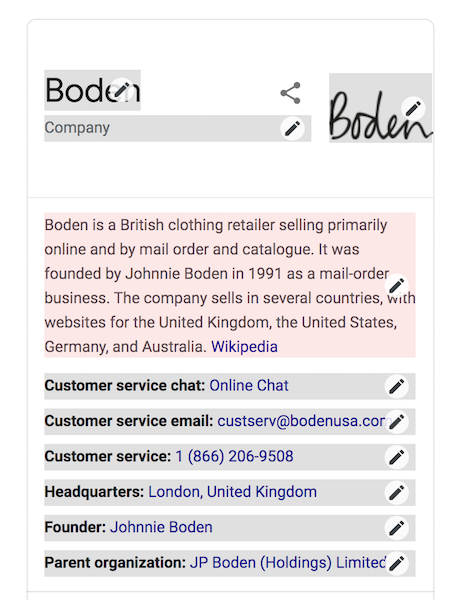
Areas you want to update might include images, descriptions or titles, social media profile links, and more.
Here is an example using Boden’s knowledge panel. You can see how each bit of information is broken into different options. You can choose which section you want to suggest an update for.
Write Out Your Suggested Updates
Because this is Google’s product and not one you can directly control yourself, you can’t just go in and make updates on the areas you would like.
You can, however, ask Google to go in and review your suggestions.
When you click on the area you want to update, a small text box will open where you can enter your suggested update.
Be as specific as possible and provide as much background as you can. This helps the reviewer on Google’s end have as much context as possible to understand the logic behind the suggested change. You can also provide links to any websites or pages to verify your requested change.
Wait
This isn’t the easy part, but you will have to wait for your review to be accepted. Google will manually review your suggestion and check for verifiable information online to back up your update for accuracy. That’s why providing the specifics and URLs as mentioned above is important.
When Google accepts your updates, you will be contacted via email.
Create More Suggestions
You should send each update as a separate request. In other words, if you want to see the image updated as well as social media profile links, you should do these separately.
This keeps the review process clean and easy to follow. It also allows you to be specific and detailed without muddling your requests.
Get in there and make suggestions for updates whenever you deem necessary.
Conclusion
Knowing what people are learning about you and your brand is key to understanding how the public perceives you. If the information at the top of a Google search isn’t accurate or isn’t reflective of what you want to project, you need to claim knowledge panels and request those updates are made.
Claiming knowledge panels can give you at least a little more control over how your brand appears in a Google search, but it’s not the end. In fact, it’s just one step in building an online brand and SEO. There’s so much you can do to improve your SEO and stay in front of your customer base with the knowledge they need to interact with your brand well.
Have you claimed your brand’s Google knowledge panel yet?
McLaren rolled out its striking blue and orange Gulf livery on Thursday ahead of the Monaco Grand Prix, a one-off look designed especially for F1’s showpiece event this weekend. The post McLaren's stunning Gulf livery makes track debut appeared first on Buy It At A Bargain – Deals And Reviews.
GDPR Cookie Consent Agreement
This website uses cookies to improve your experience. We'll assume you're ok with this, but you can opt-out if you wish.AcceptRejectRead More
Privacy & Cookies Policy
Privacy Overview
This website uses cookies to improve your experience while you navigate through the website. Out of these, the cookies that are categorized as necessary are stored on your browser as they are essential for the working of basic functionalities of the website. We also use third-party cookies that help us analyze and understand how you use this website. These cookies will be stored in your browser only with your consent. You also have the option to opt-out of these cookies. But opting out of some of these cookies may affect your browsing experience.
Necessary cookies are absolutely essential for the website to function properly. This category only includes cookies that ensures basic functionalities and security features of the website. These cookies do not store any personal information.
Any cookies that may not be particularly necessary for the website to function and is used specifically to collect user personal data via analytics, ads, other embedded contents are termed as non-necessary cookies. It is mandatory to procure user consent prior to running these cookies on your website.